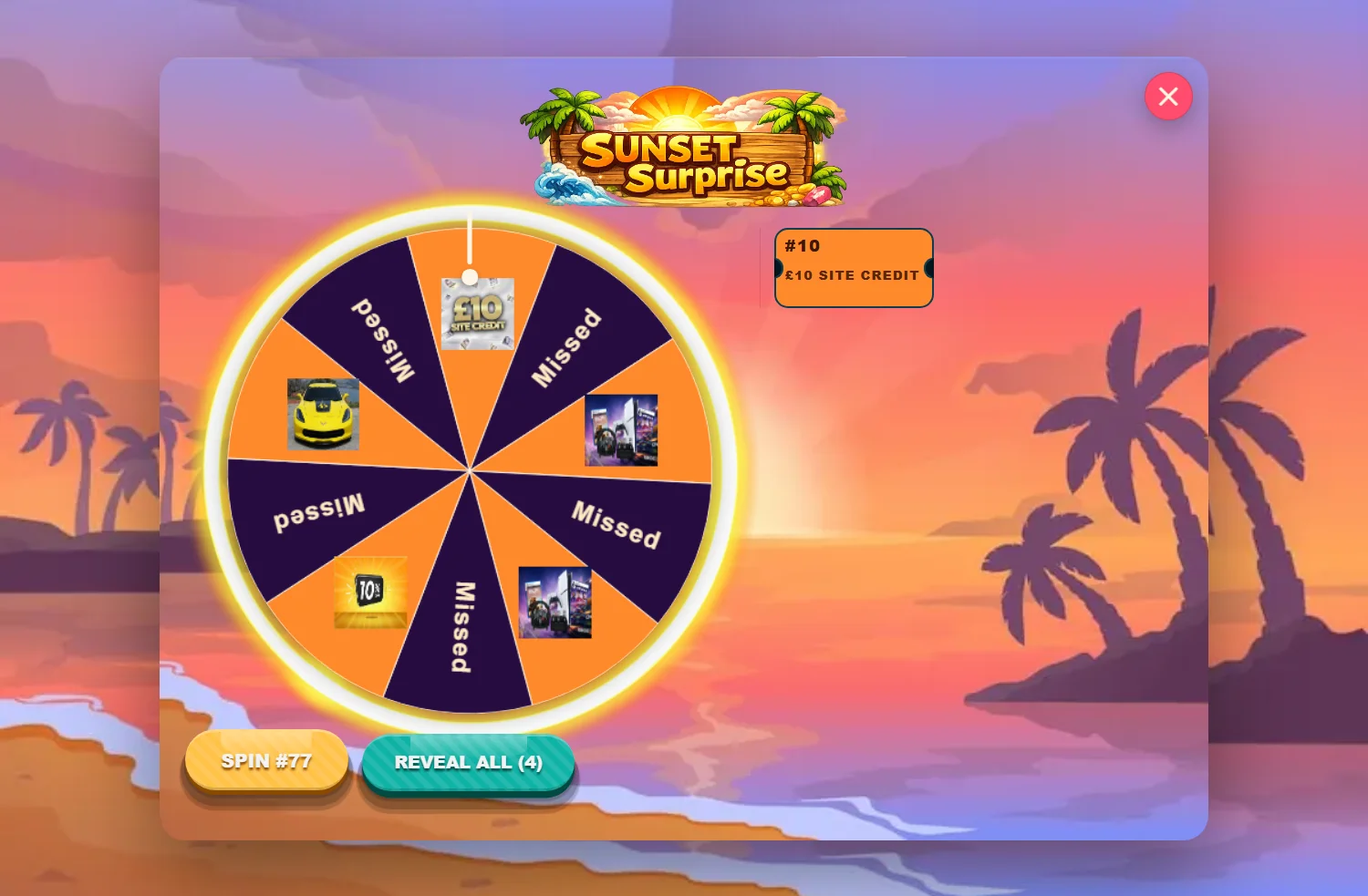
A prize wheel is the reveal people picture when you say the word "competition". It needs no explanation, it builds tension for about four seconds, and it photographs well. If you are adding one interactive element to a WooCommerce store, this is the safe first choice.
Here is the whole setup, in order.
What you need first
Three things, and the order matters:
- WooCommerce. The store itself.
- Giveaway for WooCommerce by Flintop — formerly Lottery for WooCommerce. This is the engine that issues ticket numbers and decides results. Be careful here: there is a similarly named plugin by a different developer that will not work.
- A reveal layer. The giveaway plugin produces the result. It does not make it fun. That is the part we do.
People frequently try to skip the second one and wonder why nothing appears. The wheel does not generate outcomes — it presents them. Without a giveaway engine underneath, there is nothing to present.
Set up the product
Create your giveaway product as normal, then:
- Enable Instant Win on the product.
- Set up your Prize Groups — these are what the wheel segments map to.
- Assign the product to the category the wheel module watches.
That third step is the one people miss. The module only activates for products in its category, which is what lets you run a wheel on one competition and a scratch card on another.
Configure the wheel
Open the wheel's settings and you get a live preview beside the form. Work top to bottom:
- Segments — how many, what each says, and the artwork or colour on each. This is the bit that makes it look like yours rather than like a demo.
- The wheel itself — border, pointer, background image behind it.
- Buttons — the spin button and the reveal-all button for multi-ticket orders.
- The modal — the popup the wheel sits in, its overlay and its backdrop.
Segment labels are drawn onto the canvas rather than laid out in HTML, so their size is chosen at draw time. That is worth knowing because it means the mobile size is a separate value you set, not something a media query handles for you.
Check it at phone size before you publish
Switch the preview to mobile. A wheel that reads perfectly at 1440px can become a circle of unreadable slivers on a phone, particularly if you have gone above eight segments or used long labels.
Two rules that hold up: fewer segments than you think, and shorter labels than you want. More on mobile here.
Do not let the email spoil it
WooCommerce sends an order confirmation the moment payment completes. On an instant-win product that email frequently contains the result — which lands in the customer's inbox before they have spun anything.
The free Smart Email Delay Handler holds those emails until every reveal has been played. Turn it on at the same time you set the wheel up, not after somebody complains.
A shortcut for the styling
If you would rather not decide forty values from scratch, import a ready-made theme file and adjust from there. Two are wheel themes. Swap the artwork for your own uploads once it is in, since theme files carry settings rather than media.